FrameReplay · MultiCam
Press Record on one device. All cameras record together.
Record the same movement from the front, side and back at once, using several iPhones and iPads.
The videos come together on one device, so you can watch them side by side right away.
Just connect every device to the same Wi-Fi. No internet needed.
Two roles
Viewing device
Receive in the app
The device you press Record on. All videos come here. It also records one angle itself.
Camera device
Be a camera in the app
Set on a tripod to record another angle.
What you need
- Two or more iPhones or iPads with FrameReplay
- The latest version of FrameReplay from the App Store on every device. Devices on different versions still connect, but fixes (such as the one for videos slowly drifting out of sync in long sessions) only work on updated devices.
- Only the viewing device needs MultiCam. Camera devices join with the free version of FrameReplay.
- The viewing device needs Pro and MultiCam (a one-time add-on to Pro).
- If you downloaded FrameReplay from the App Store with your current Apple ID before 21 September 2026, Pro and MultiCam are free for you (TestFlight-only use does not count). The app checks this automatically; if it applies, the top of Settings shows "Pro is on for you, as someone who has used the app since 1.0".
- One Wi-Fi network that every device joins
- Recommended: a portable Wi-Fi router, or Personal Hotspot on an iPhone
- Shared Wi-Fi at facilities or hotels often blocks communication between devices.
- A tripod or holder for each camera device
How to use it (4 steps)
1
Connect every device to the same Wi-Fi
- In Settings > Wi-Fi on each device, choose the same network.
- With Personal Hotspot, the iPhone sharing its connection can also be used as a viewing or camera device.
- If 5 GHz is available, use it — videos arrive faster.
2
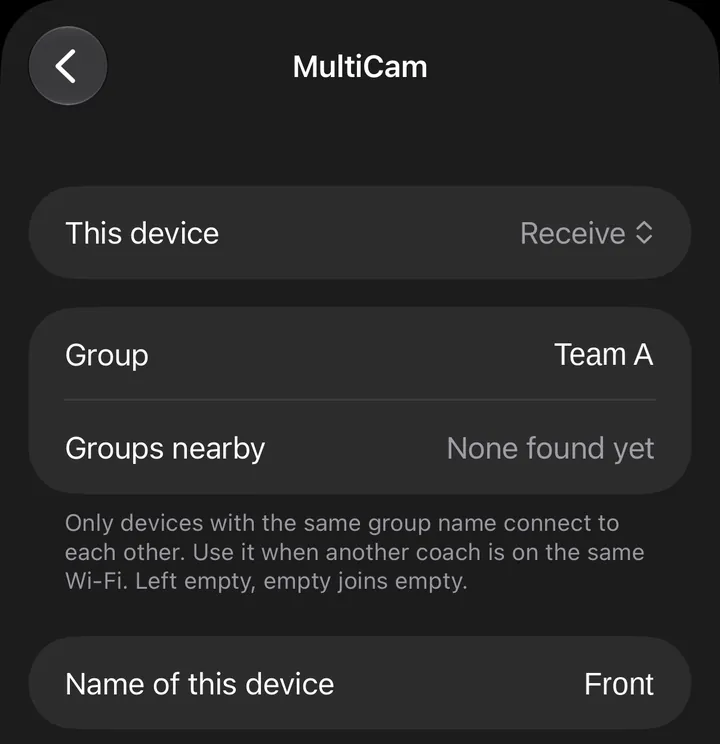
Set up the viewing device
Viewing device- In FrameReplay, tap the gear at the top right of the recording screen, then MultiCam under Connections.
- Set This device to Receive.
- Enter a Group name (e.g. Team A).
- Under Name of this device, enter the angle it records (e.g. Front).
- When asked about Local Network, tap Allow.
3
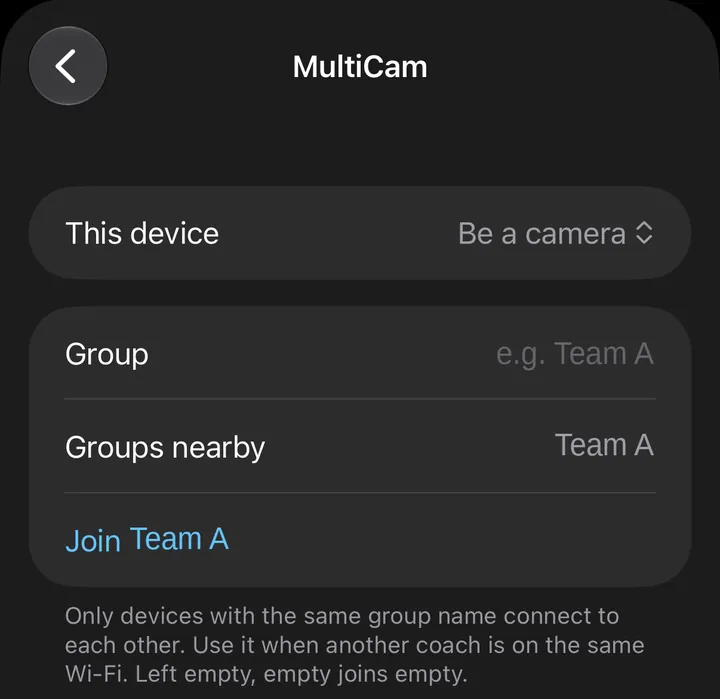
Add the camera devices
Camera device- Settings > MultiCam > This device: Be a camera.
- Under Groups nearby, tap the button with the viewing device's group name (e.g. Join Team A). (If its name appears, the devices can reach each other.)
- If its group name already matches the viewing device's, no button appears — it is already in the group.
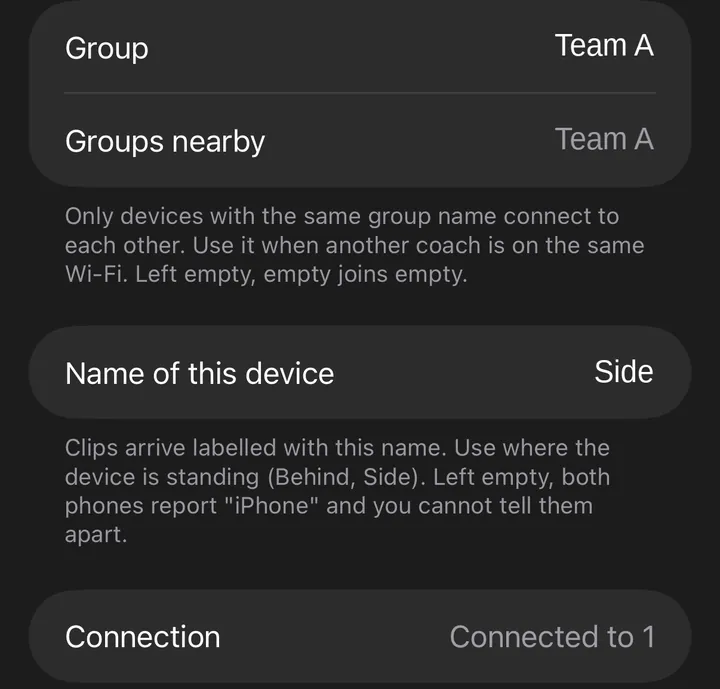
- Under Name of this device, enter where it stands (e.g. Side, Behind), so you can tell the angles apart.
- When asked about Local Network, tap Allow.
- When Connection shows "Connected to" and a number (e.g. "Connected to 2"), you're ready.
⚠️ Keep the camera devices on the recording screen.
On any other screen they can't respond when recording starts. (The screen stays on by itself.)
4
Record from the viewing device
Viewing device- Press Record on the viewing device — every device starts recording.
- Stop — every device stops, and the videos are sent to the viewing device automatically.
Connection status (top left of the viewing device's recording screen)
- Blue dot and a number: how many camera devices are connected (e.g. 1). The number doesn't change while videos are arriving.
- Yellow dot: looking for camera devices (none connected yet) — "Looking for the other device".
- Red dot: something needs your attention — "Not connected", "No camera connected" while recording, or a camera device's battery is low (20% or less and not charging), shown in place of the number, e.g. "Side Battery 12%".

Watch your videos
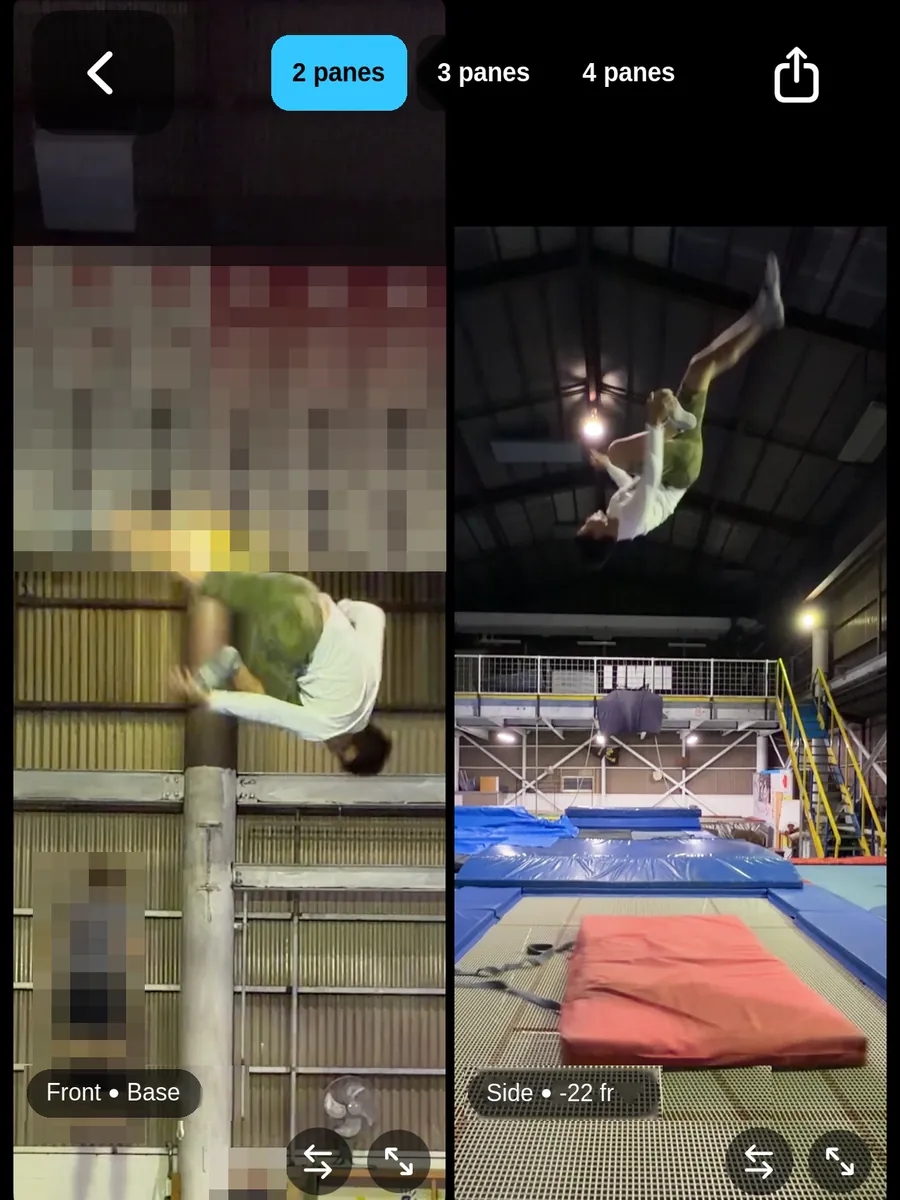
- On the viewing device, open the video and tap Angles to see 2–4 angles side by side.
- They are lined up by the time they were recorded. If needed, adjust one frame at a time.
- Tap the share button to turn the side-by-side view into one video you can save to Photos or send with AirDrop.
More
- Two viewing devices: Set both to Receive in the same group. If the second one presses Record while a recording is under way, it joins that recording, and its videos go to both viewing devices. Each viewing device needs MultiCam.
- Another team on the same Wi-Fi: Use different group names. Only devices with the same group name connect.
- If the connection drops: The videos stay on the camera device and are sent when it reconnects.
- Battery and storage: When a camera device's battery runs low (and it isn't charging), the viewing device's recording screen shows it, e.g. "Side Battery 12%". In a camera device's Settings > MultiCam you can choose not to keep sent videos (they are kept by default); they are only removed after they have been delivered, and the newest clip and any starred clips are kept.
Troubleshooting
| Problem | Check first |
|---|---|
| Stuck on "Looking for the other device" | Same Wi-Fi? Same group name? |
| Nothing under "Groups nearby" | Is Local Network allowed? (iPhone Settings > FrameReplay > Local Network) |
| Can't connect on facility Wi-Fi | Switch to a portable router or Personal Hotspot |
| A camera device doesn't record | Is it on the recording screen? |
| Videos take a long time to arrive | Use 5 GHz. Long or high-quality videos take longer. |
| The connection dropped | The videos stay on the camera device and arrive after reconnecting |
| Worried about a camera's battery | A camera running low shows its name and level on the viewing device's recording screen. Charge it for long sessions. |